
Last updated: November 14, 2026
Quick answer: yes, dual monitor rigging on desktop risers can work if the load stays centered and the mount matches the converter, bracket, and arm. standingdeskconverters.com: Dual Monitor Rigging on Desktop Risers is about keeping two screens stable on a moving platform, not just attaching them. The steps below show how to mount two screens without throwing the riser out of alignment.
Can a dual monitor setup work on a standing desk converter?
Yes, a dual monitor setup can work on a standing desk converter if the load stays inside the converter’s stable footprint and the monitor mount is made for the job. A dual monitor arm crossbar spreads the screens across one support point, while a VESA 75/100 mounting bracket gives the back of each monitor a standard attach point.
The catch is balance. Two monitors on one side of a riser can create a lateral monitor cantilever that twists the desk converter or shifts a gas-strut latch out of line. That is the failure mode people miss.
As you raise the riser, the screens can drift forward a little more with each inch. If the base and arms are not matched, that small shift becomes a wobble at standing height. The fix starts with the mount, not the screens.
- Use a mount made for dual VESA desk converter use.
- Keep the center of mass near the middle of the converter deck.
- Avoid stacking both screens far off one side.
- Check that the converter’s lift path stays smooth at full height.
If the converter already feels top-heavy with a laptop, a monitor pair will only make it harder to keep steady. That does not mean dual screens are impossible. It means the mount has to do the balancing work.
What hardware do you need for two screens on a desk converter?
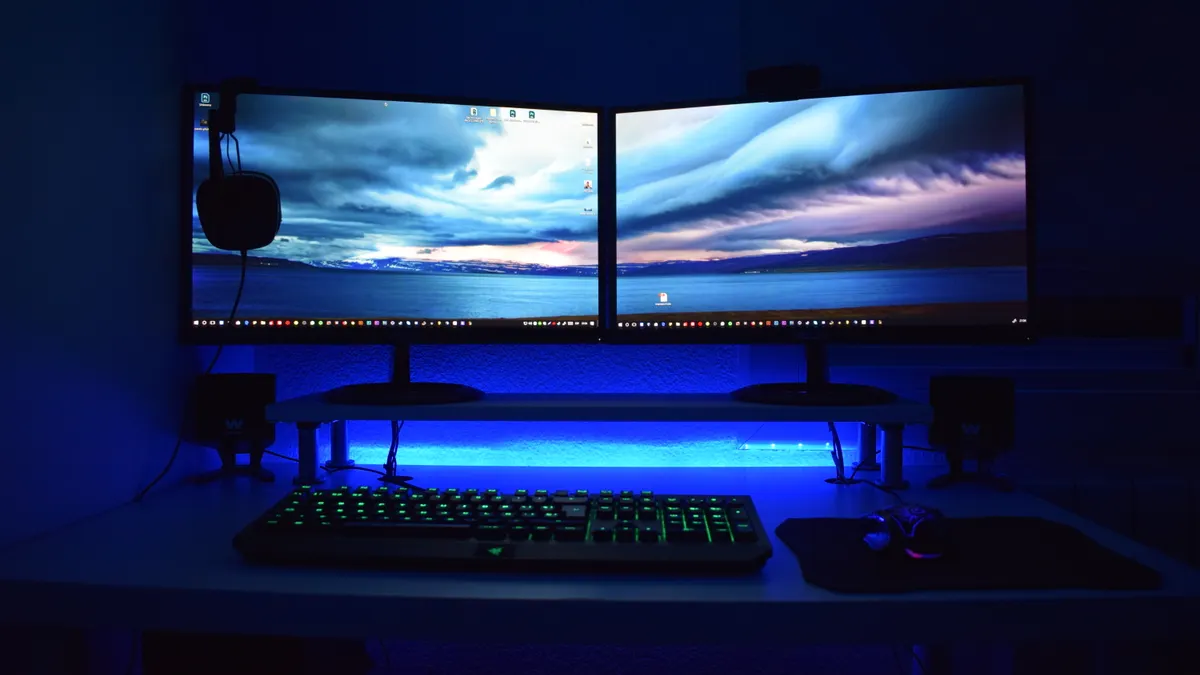
You need a mount that fits the converter’s clamping surface, the monitor backs, and the way your desk rises. The main pieces are a dual monitor arm crossbar, a VESA 75/100 mounting bracket, and either a clamp-style base or a grommet hole mount if the converter and desk surface allow it.
A lot of people buy the screen arms first and the mounting plan second. That usually goes wrong. The desk converter is the real frame here, and it has less room for error than a fixed desk.
Before you buy or install anything, check these points:
- VESA pattern: Most dual mounts use 75 x 75 mm or 100 x 100 mm. If your monitor back does not match, you need an adapter.
- Arm reach: The arm needs enough travel to place both screens without forcing one too far forward.
- Clamp depth: The clamp has to grip the riser top or mount plate without hitting trim, edges, or moving parts.
- Lift clearance: The monitor arms should not collide with the wall, shelf, or keyboard tray when the converter rises.
- Cable slack: Leave enough cable for the highest standing position, not just the seated one.
A grommet hole mount can be cleaner than a clamp if the desk converter surface has the right opening and the load path is centered. But on many risers, a clamp is simpler because it avoids drilling and keeps the mount removable. The wrong choice is the one that forces the screens to hang outside the converter’s stable zone.
How do you mount dual monitors to a desktop riser?
You mount dual monitors to a desktop riser by anchoring the base first, centering the arm load, and then tuning each screen so the riser still lifts straight. The job is mostly geometry, not force, and that is why the setup matters so much on a moving riser.
Step-by-step: mounting a dual monitor rig on a desk converter
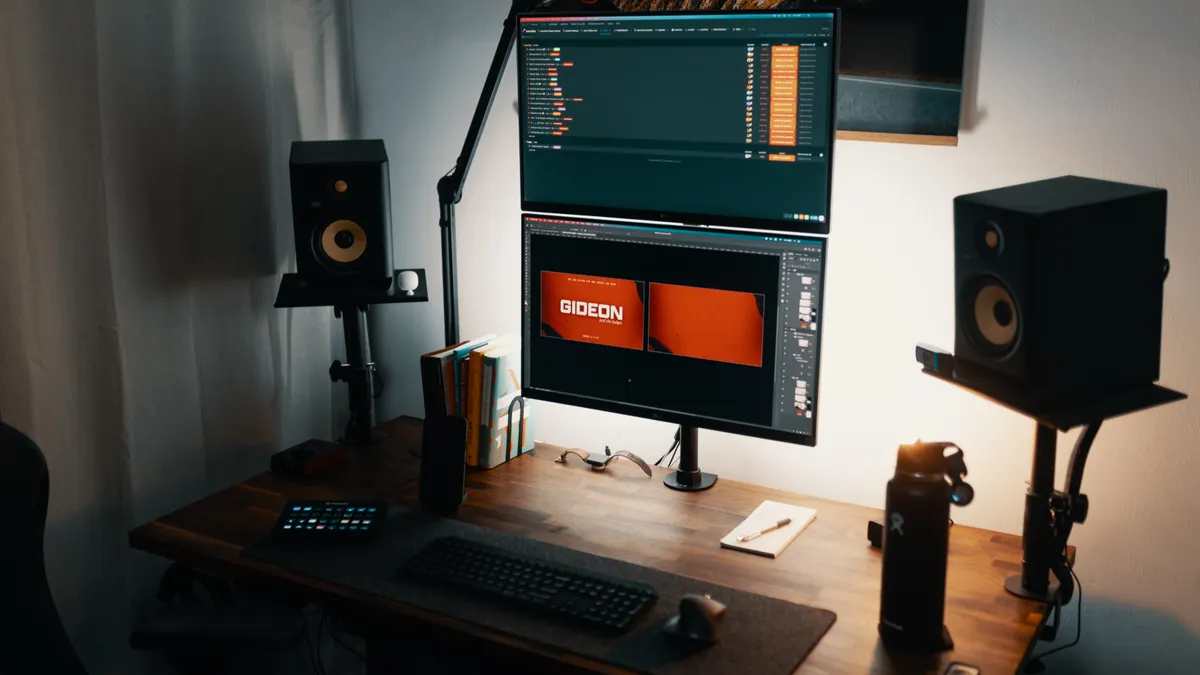
- Clear the top deck. Remove the keyboard, laptop stand, and loose gear so the full surface is visible. You need to see the centerline before the arms go on.
- Mark the center of the riser. Find the midpoint of the desktop converter and place the arm base there or as close as the design allows. That keeps the torque from pulling one side harder than the other.
- Attach the clamp or grommet base. Tighten it enough that the base does not shift when you press the arm, but do not crush the edge of the converter top.
- Fasten the VESA plates to each monitor. Match the plate to 75 mm or 100 mm spacing, and make sure the screws thread cleanly into the monitor back.
- Hang both monitors on the crossbar. Start with the lighter screen if one weighs less. Keep both centered over the bar, not pushed to one end.
- Set the arm tension. Adjust the joints so the monitors hold position without dropping. If the arm sags after release, tighten the tension points before moving on.
- Raise the converter slowly. Watch the screens as the deck moves through its full travel. The lift should stay even, with no front-heavy dip.
- Route cables with slack. Leave a gentle loop so the cords do not pinch at the lowest or highest position. A tight cable can tug a monitor into a bad angle.
- Tilt and level the screens. Set the top edges where your eyes want them and make sure both panels sit at the same pitch.
- Test the full cycle three times. Lower and raise the riser, then check for sway, arm drift, or latch misalignment.
The result should be boring, in the best sense: the screens stay put, the riser lifts cleanly, and nothing shifts when you rest your hands on the keyboard shelf. If the arm swings or the deck tilts, the load is too far forward or too far to one side.
On the flip side, a mount that seems stable when the desk is down can still fail at standing height. The higher the riser goes, the more a small offset turns into a visible lean.
Which balance problems cause monitor rigs to fail?
They fail when the monitors create too much forward pull, side pull, or vertical strain for the converter’s frame. A gas-strut latch can drift out of alignment when the weight is not centered, and that creates a sticky lift or a pop at the wrong point in travel.
This is where people usually blame the desk converter when the real problem is the load path. A pair of monitors on a long arm is not just weight. It is weight plus reach.
Common failure points include:
- Forward cantilever: The screens sit too far in front of the riser and act like a lever.
- Side loading: One monitor sits farther left or right than the other, which twists the base.
- Overlong arm reach: The arm extends enough to look neat but not enough to stay stable.
- Weak clamp placement: The mount grabs a thin edge or soft panel and slowly slips.
- Cable drag: Tight cords tug the screens backward or sideways as the desk moves.
The cost of bad balance is not just wobble. It can make the lift feel rough, shorten the life of the latch, and force constant re-adjustment every time the desk changes height.
A better layout keeps both screens close to the converter’s centerline and limits the amount of empty arm sticking out behind or beside them. If the monitors need a wide spread, a fixed desk with separate arms is usually the cleaner fit.
What should you check before buying a dual VESA desk converter mount?
You should check the mount geometry, the converter shape, and the way the screens will move through the full lift range. A good-looking mount on paper can still be wrong if it blocks the keyboard tray, hits the wall, or pushes too much load past the riser’s edge.
As you compare options, the photos often look similar. The details that matter are hidden in the arm joints, base shape, and clearance lines. Those details decide whether the rig stays calm at standing height or fights you every day.
Use this checklist before you commit:
- Mount type: Crossbar, dual arm, or a pair of single arms?
- VESA fit: 75/100 support without adapters?
- Clamp depth: Enough bite without crushing the riser?
- Rise clearance: Will the arms clear the back wall at full extension?
- Weight path: Does the design keep the screens close to the center?
- Cable room: Enough slack for the highest position and the lowest position?
If the mount needs the screens far out to clear the keyboard tray, that is a warning sign. The desk converter should not have to carry a wide shelf of leverage just so the monitors fit.
For the broader setup rules around size, stability, and desk compatibility, the standing desk converter compatibility hub is the right place to start before you choose a bracket.
What mistakes cost the most on dual monitor risers?
The most expensive mistake is treating a desk converter like a fixed desk. It is not one. A riser moves, flexes, and changes balance as it travels, so a mount that works on a heavy desk can misbehave on a lighter platform. If you are unsure about load limits or installation, consult the converter maker or a qualified installer before you treat the setup like a permanent desk.
The next mistake is using the wrong arm for the job. A single monitor arm with an improvised second screen setup may look clever, but it often creates uneven torque and a crooked lift path.
Here are the errors that cause the biggest headaches:
- Ignoring monitor depth: Thin screens and bulky screens do not sit the same way on a crossbar.
- Mounting too high: Extra height can hit the wall or push the center of gravity upward.
- Skipping cable slack: Tight cables act like hidden springs and drag the screens off level.
- Overextending one arm: That creates a longer lever and more sway.
- Using a weak edge for the clamp: A poor bite point can slip after a few height changes.
What to do instead is simple: keep the assembly compact, centered, and easy to service. If the converter has a narrow top or a soft edge, choose a mount that spreads force well or move to a different support method.
When is a dual monitor setup the wrong fit?
It is the wrong fit when the converter is too small, the screens are too wide, or the mount needs more reach than the frame can safely handle. A pair of large monitors can be fine on a rigid desk and still be a poor match for a desktop riser.
A quick warning sign is simple: if you have to fight the lift just to get the screens into place, the setup is already too stressed. That strain will show up every time you raise the desk.
Skip dual monitor rigging on a desktop riser if:
- the converter top is narrow and leaves no center margin,
- the monitors sit far apart on a long arm,
- the riser already feels unstable with a laptop,
- or the clamp cannot bite a solid section of the frame.
A single-arm setup or a fixed desk with separate mounts is the better choice when the space is tight. A grommet hole mount can help in some layouts, but only if the desk and converter shape support it without pushing the screens off center.
The practical rule is plain: if the rig has to be forced into place, it is the wrong rig. A cleaner setup is one that raises, lowers, and holds its line with almost no fuss.
Key Takeaways
- A dual monitor rig can work on a desktop riser if the load stays centered.
- A dual monitor arm crossbar often gives the cleanest balance for two screens.
- The main risks are cantilever, side pull, and cable drag.
- VESA 75/100 fit matters before any mounting starts.
- If the converter already feels unstable, a dual-screen rig is usually the wrong match.
Can a standing desk converter hold two 27-inch monitors?
It can, but only if the converter, mount, and monitor weight are all compatible. The bigger issue is not the label “27-inch”; it is how far the screens sit from the center and how much leverage the arm creates.
If the pair forces the riser to tilt, wobble, or lift unevenly, the setup is too much for that frame. A dual crossbar with good center placement is usually safer than stretching two screens far apart.
Should dual monitors be clamped to a desk converter?
Yes, clamping can be the right choice if the clamp lands on a solid part of the desktop riser and the mount stays close to center. A clamp is often simpler than drilling and easier to remove later.
Skip clamping if the edge is thin, soft, or too shallow for a stable grip. In that case, a grommet hole mount may fit better, but only if the desk and converter design can support it without creating a side load.
Drafted with AI; not yet reviewed by a person.

One thought on “Dual Monitor Rigging on Desktop Risers”